User's guide
Day
Day shows one date on a timeline: your meetings and the entries you wrote, in the order they happened, so you can see the whole day at a glance.
The timelineMeetings and entries share one column of hours
Your meetings show as filled blocks across the hours they took, and each entry from your Journal shows as a coloured dot with its first line beside it. You see a meeting and what you did during it in one place. Two things at the same hour draw side by side, and a short block inside a long one draws inset on top of it, so a fifteen-minute interruption leaves an eight-hour block whole. An all-day item has no hours to draw against, so the timeline leaves it off.
Scale at the top stretches or shrinks the hours, so a packed morning opens up and a whole day fits one screen. On a computer, holding ⌘ or Ctrl while you scroll the hours does the same. The browser and the phone both remember where you left it, so the next day you open is drawn at the scale you were reading at. The strip of days across the top changes the date. Tap any day to jump to it, or step a day with the arrows either side. Hold a day, or right-click it on a computer, and the whole month opens under the strip for a date further off. A line marks the current time while you are on today, and a Today button appears beside the strip once you leave it. Untimed entries collect under the hours at the end of the day, under Notes, each saying how far from that day it was written, since an entry written while you were looking at some other date has no time of day.
Meetings come from your Google Calendar, connected at Settings → Account → Calendar: one button, Google's own permission page, done. The same place then lists the calendars that came back, so you tick the ones you want on your Day and name the life area each one falls under. Until it is connected, the day simply shows what you wrote yourself and nothing else.
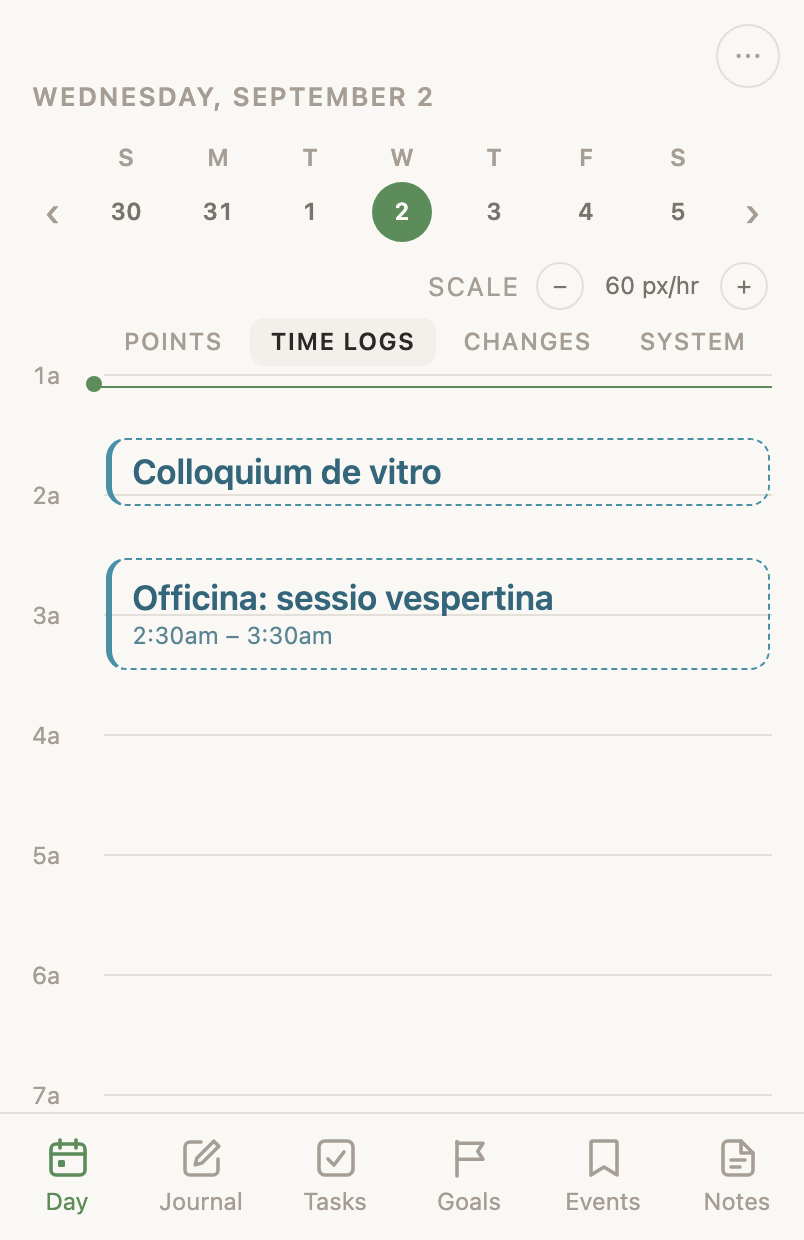
Opening a markTap anything on the timeline to see it whole
Every block and dot on the timeline is a mark, and a tap opens it whole. Several entries in the same minute collapse into one mark with a count, and opening that mark shows the rest as well, spaced below the one you opened. A row prints its own time only when it differs from the one at the top.
An entry you wrote opens with everything you put in it, not the single line the timeline had room for. The time at the top of the sheet is the control for changing it. Tap it, or long-press or right-click it in a browser, and it opens an editor. An entry with a start and no end opens on one typed Starts field, with buttons beside it that move the time an hour or five minutes either way, and + Add an end time under that. Adding an end is what turns a point into a time log. An entry that already has an end shows an Ends field as well, with its own set of the same buttons, how long the entry ran printed beside the heading, and Clear end to take the end away. An untimed entry shows Set a time where its time would be, and that is how it gets one. Tap the words themselves and they become a field, so a line typed wrong is fixed where you are reading it. Delete, under the entry, removes it after a confirm, and for six seconds an Undo on the day can take it back. Open in Journal, beside it, goes to the day the entry is filed under, which is where you change its areas and the task it links to.
A meeting opens with where it is and the notes on its invitation, and a call has a Join the call link. Three words mark where you stand with it. Going confirms you plan to attend and leaves the meeting on the day. Done records that it happened by turning it into a time log with its real title and times, so the block becomes logged time. Decline takes it off the day, cancels the task behind it, and answers no in Google, after six seconds in which Undo takes it back. Google emails nobody. Your answer is on the event, where the organizer sees it if they look. For a meeting you own there is no invitation of yours to answer, so declining it only clears it here. Leaving the day or closing the tab sends the decline early. If the server refuses it then, the app names the meeting and says it is still there. It says so the moment you are looking at that screen again, or on the next load of that day when the screen has gone for good.
A row in the Changes column and a row in the System column open to be read. Both belong to the app's own record rather than your writing, so there is nothing on either to correct here. A Changes row does offer the way through to the task, goal, note or event it is about, and it drops that offer once the thing itself has been deleted, since there is no longer a page to open.
Logging time by drawingDrag an empty stretch of the hours to log your time
Drag down an empty stretch of the hours and the Day draws a block across it. Let go and the Day asks what you were doing, and the answer saves as a time log. On a touchscreen, hold still for a moment and then drag, since the pause is how the app knows you mean to draw rather than to scroll. A press with no drag makes a point, an entry at that minute with no end. Where one column fills the screen, a draw on the Points column makes a point however far the finger travels, since that column holds points.
A block you draw starts on a quarter hour, or on the end of the entry just before it when that is nearer, so a new block meets the one before it instead of leaving a two-minute hole between them.
The four columnsEach kind of row has its own column
Every row beside the hours belongs to one of four columns.
- Points — the entries you wrote at a moment.
- Time logs — the blocks with a start and an end, your own logged time and your meetings.
- Changes — what changed, at the time it changed: a task, a goal, a note or an event being made, deleted or shelved, and the field edits underneath.
- System — the rows a machine left: a device reporting something, and anything the agent or the app wrote on its own. The morning sleep reading and the log of a completed meeting are machine-written too, but they are about your day, so they appear among your own marks instead.
A phone, and a browser window narrowed to about a phone's width, show one column at a time, with these four names as tabs across the top and a sideways swipe between them. A wide window shows all four side by side in the same order and drops the tabs, so you tell the columns apart there by what is in them.
The one column on screen still shows the marks the others hold. While you read Time logs, each moment written that day shows as a dot beside the hours; while you read Points, each time log shows as a short line at its own extent. Both take the colour of the entry's life area, grey when it has none, and both open the entry they stand for. A wide window has all four columns already, so it draws neither.
A finished thing shows as its own record rather than as a mark on something else. A meeting you finished is the time log it became, at the hours it took; a task you closed is its row in Changes, at the minute it closed. The timeline has those two layers and no third, so no tick, badge or dot anywhere on it says that something is done.
A Changes row says who made the change when it was not you. Your own edits are unmarked. A change made by something else shows one word in front of it: Claude for a Claude session working through the connector, Assistant for the chat inside the app, Automatic for a background job. Opening the row names the job. Rows recorded before the app started keeping this show nothing, so an unmarked row from that time is not a claim that you made it. Unattributed means something wrote without saying what it was, which is worth seeing.